Global Admin (Superadmin) Guide
Global Admins oversee system-wide setup across all facilities, tier users, and global test result configurations. See User Roles for a summary of permissions.
02. Global Admin: landing page and roles
Who: Global Admin
Purpose: What the Global Admin sees after login and what they are responsible for.
Landing Page
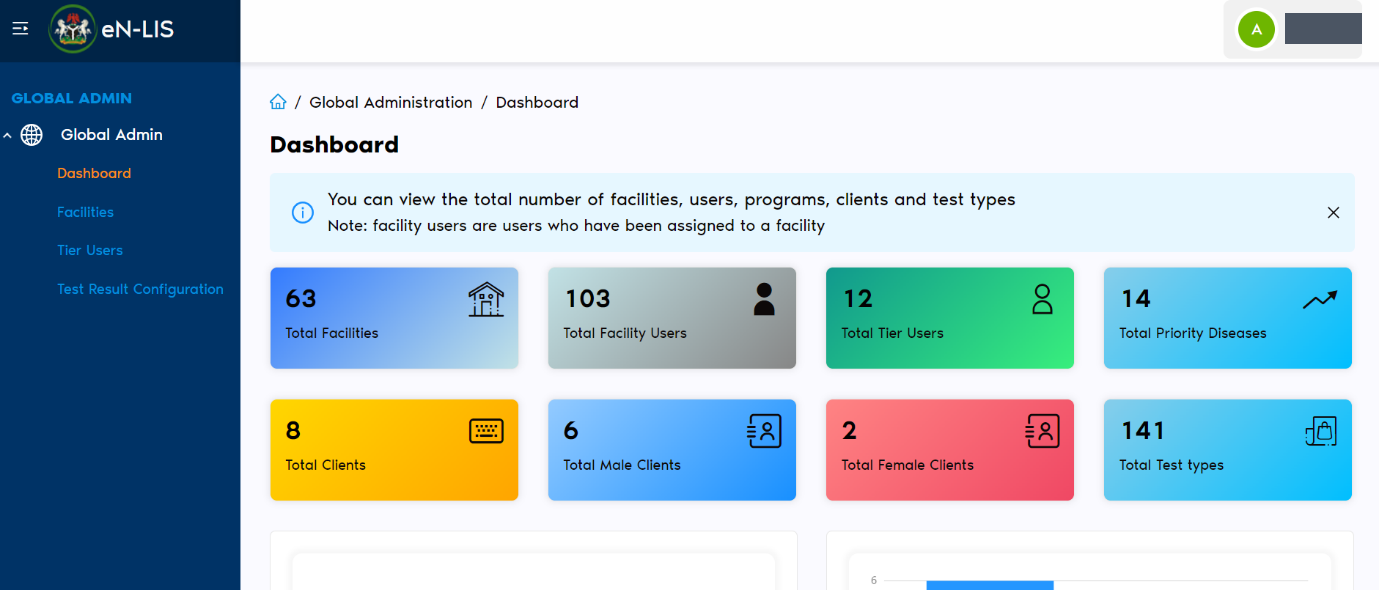 Figure 5
Roles of a Global Admin
- Creation of a facility
- Creation of a facility Admin
- Creation of tier users
- Test result configurations
03. How to create a facility
Who: Global Admin
Purpose: Register a laboratory or health facility in eN-LIS, and edit its details.
- Search by identifier (Facility Name and Facility Code) to check if facility exist
- Enter Facility code or Facility Name
- Click on Apply Filter
- Click on Create Facility
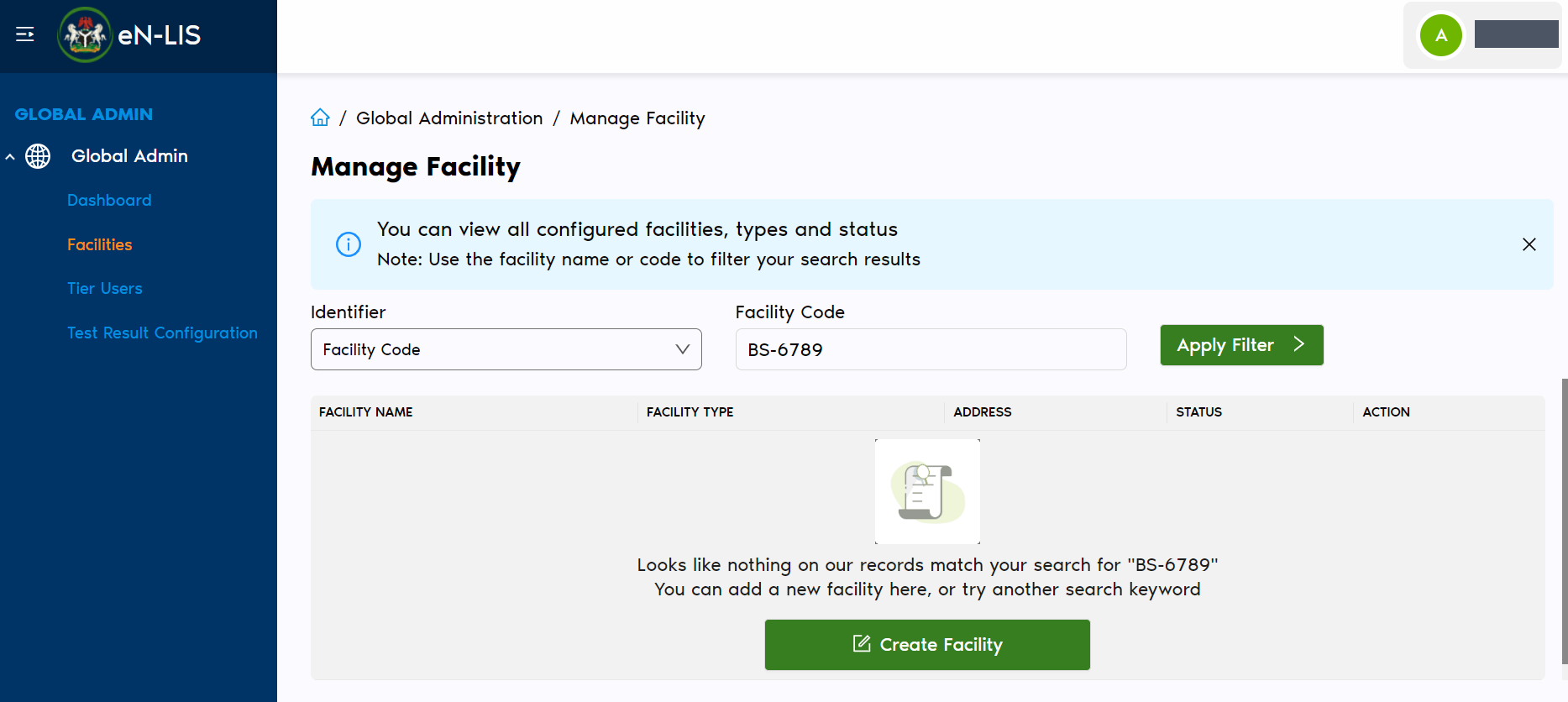 Figure 6
- Enter facility details
- Click on Create Facility
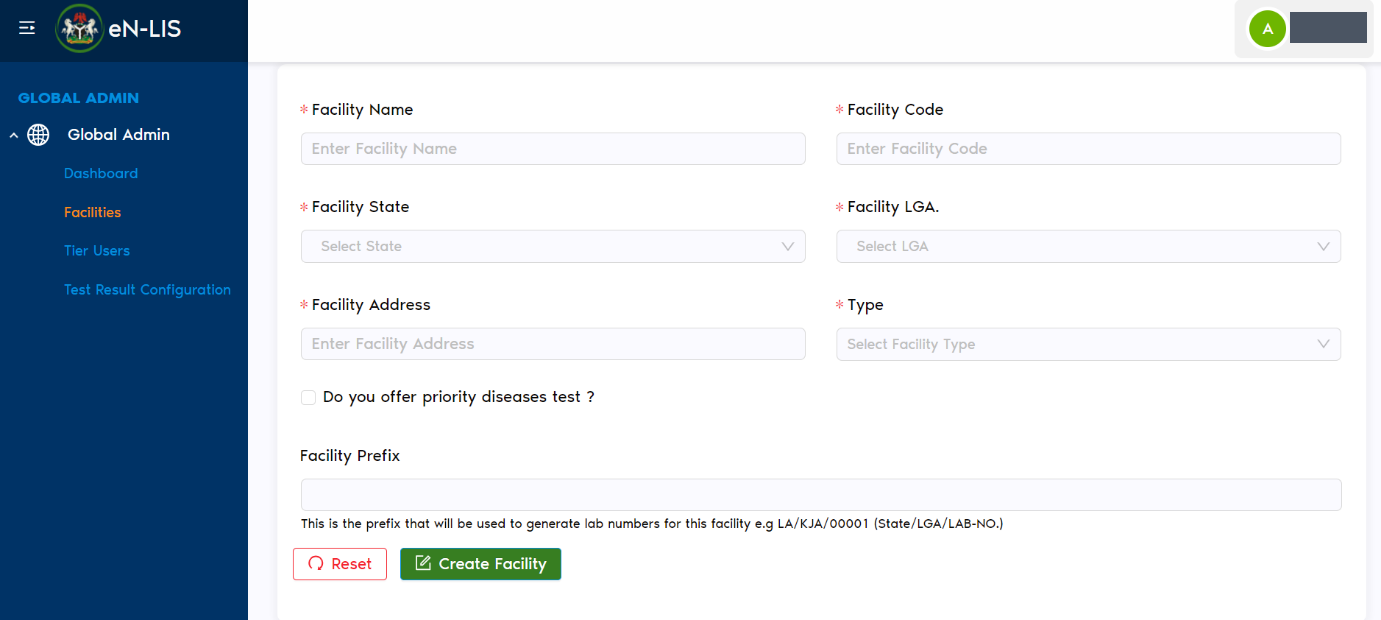 Figure 7
To Edit Facility Details
- Click on the Edit icon (yellow) to make changes
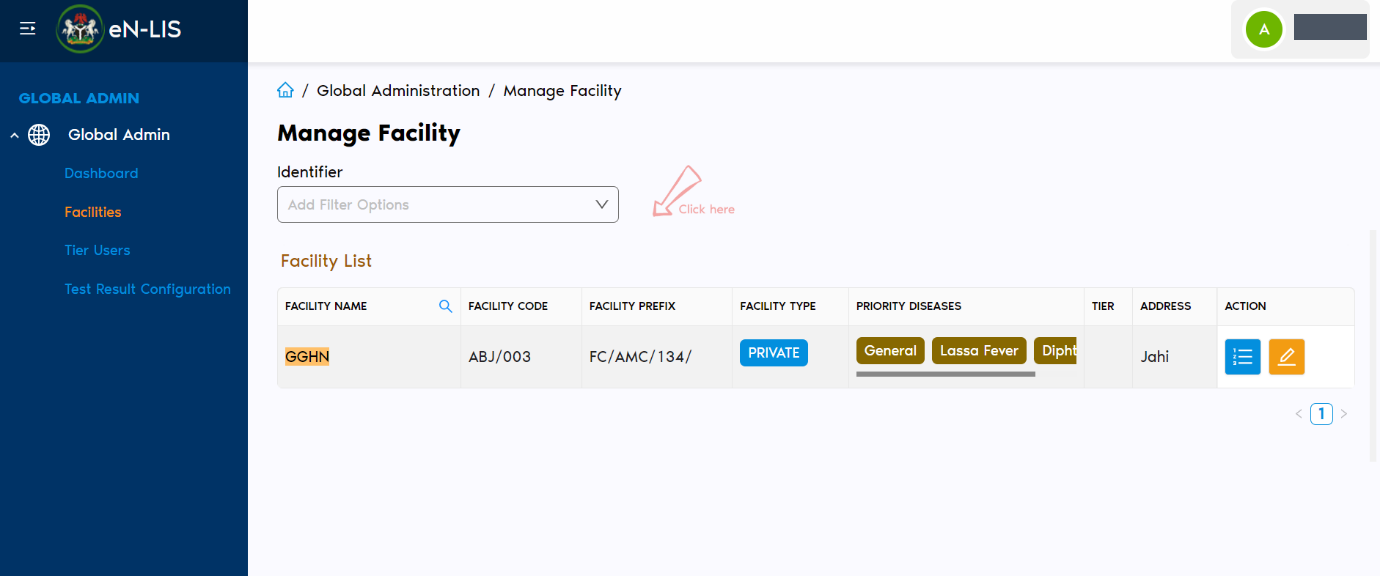 Figure 8
- Make changes
- Click on Update Facility
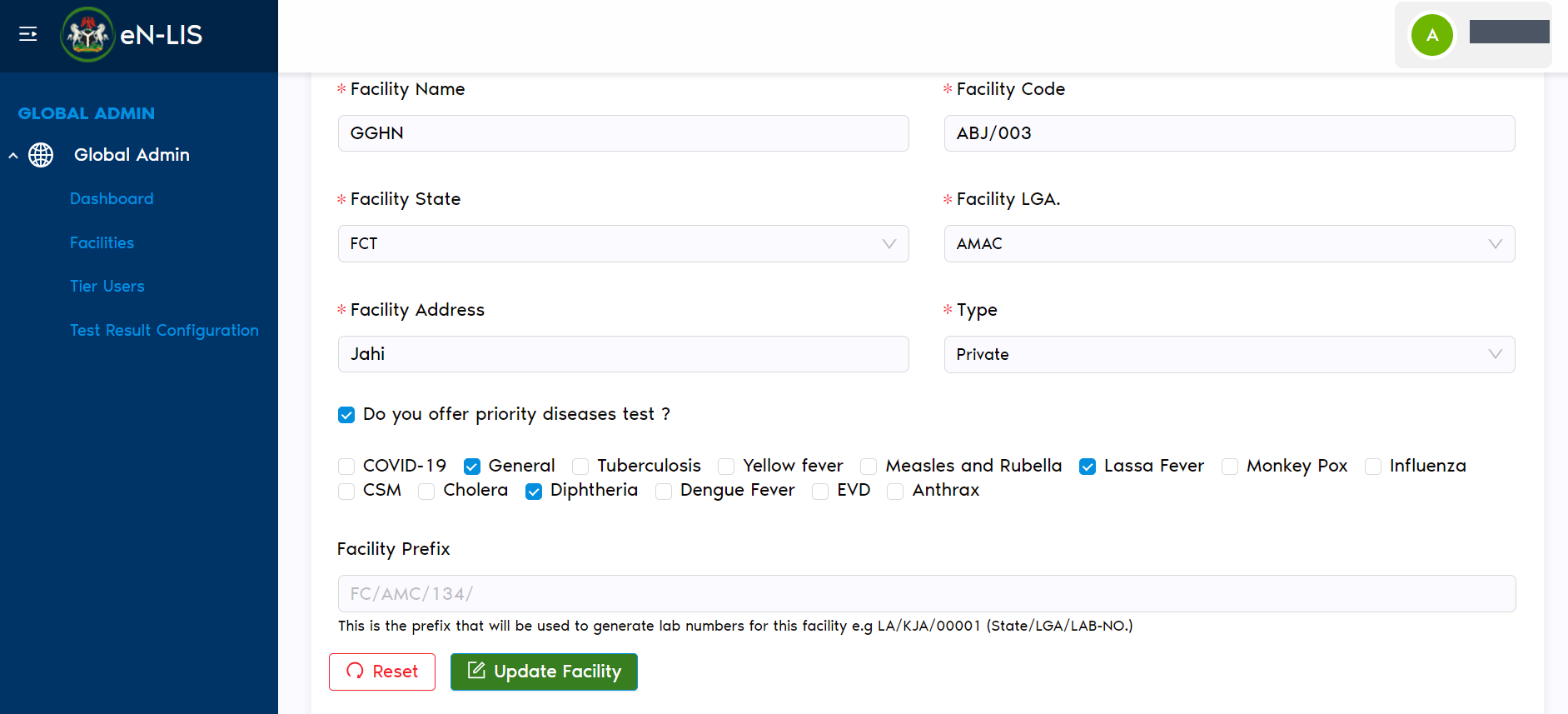 Figure 9
04. How to create a Facility Admin
Who: Global Admin
Purpose: Give a facility its administrator, who then creates all other users.
To Create a Facility Admin
- Click on Facilities under Global Admin
- Search for the created facility*
- Click on Manage User icon (Blue)
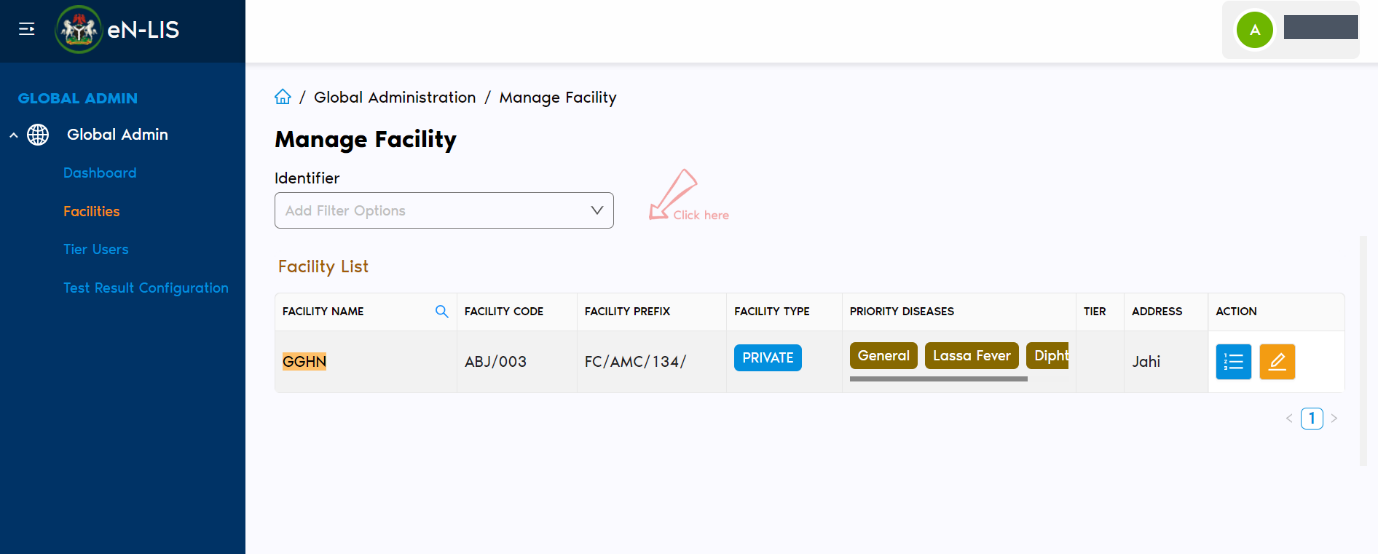 Figure 10
- Click on Create Admin User
Global Admin can not add any other user role other than Facility Admin
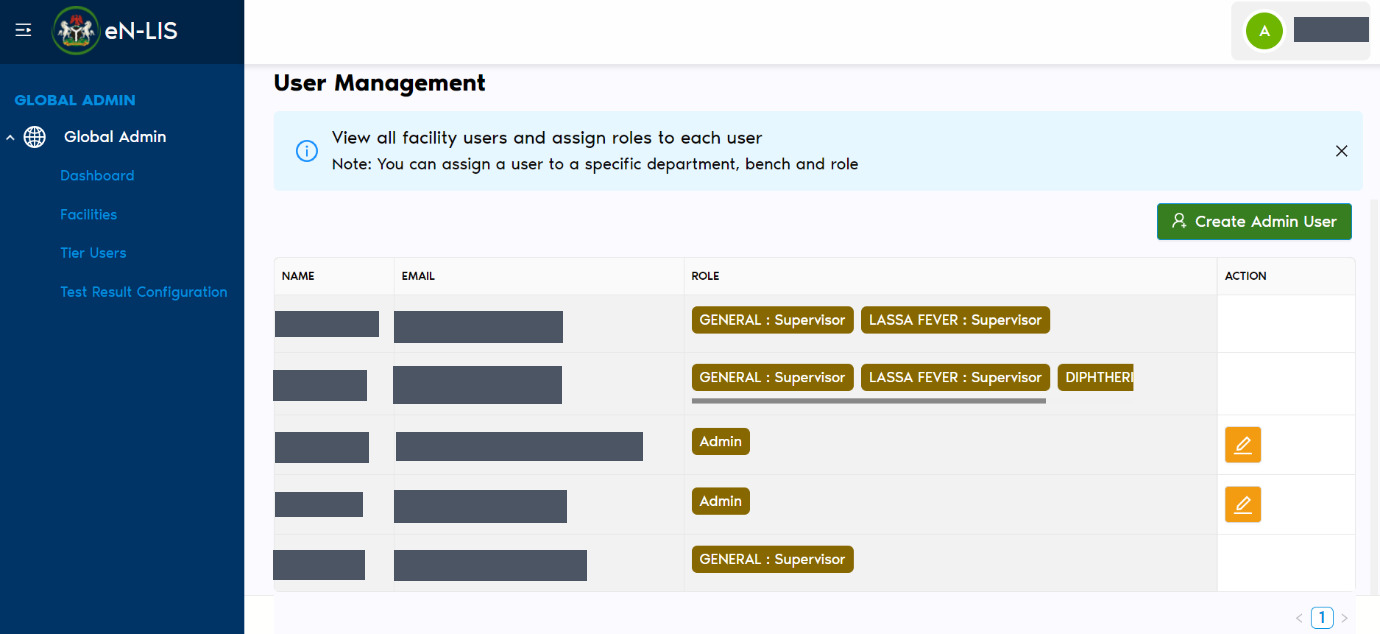 Figure 11
- Input details (First Name, Last Name and email) of Facility Admin
- Click on Submit
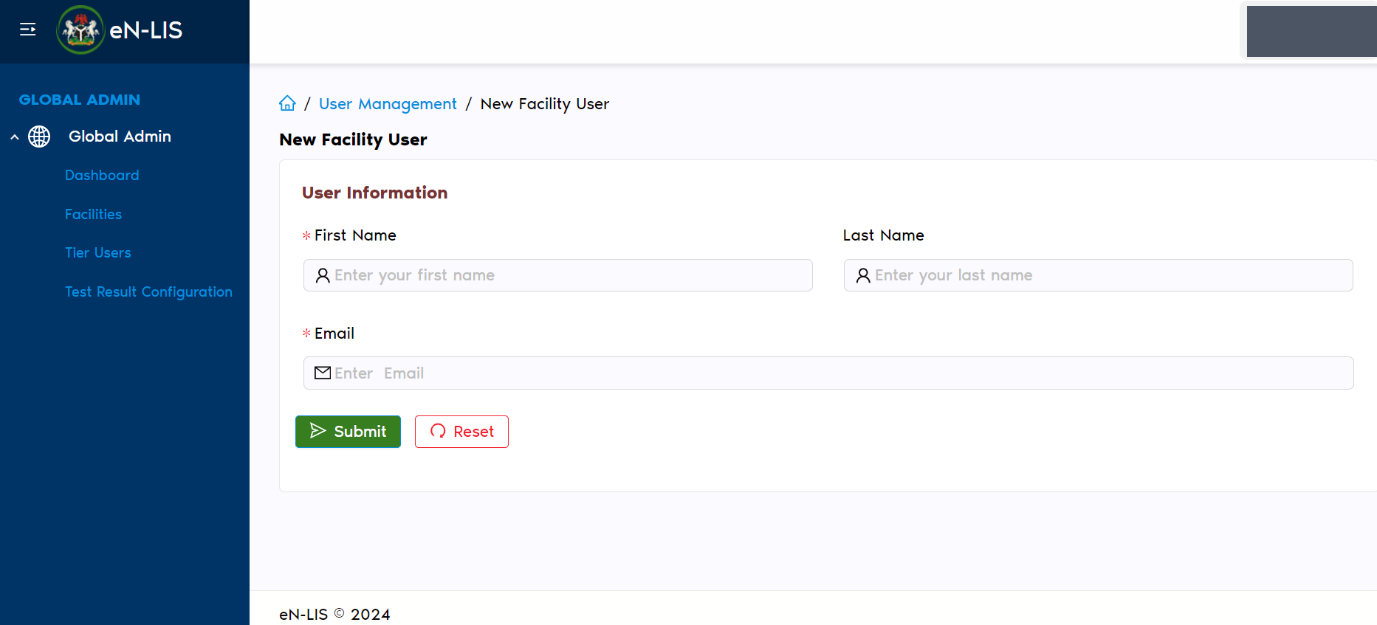 Figure 12
05. How to create a tier user (Federal, State or LGA)
Who: Global Admin
Purpose: Create users who view data at Federal, State or LGA level.
Creating a Tier User (federal, State or LGA)
To Create a Tier User
- Click on Create Tier User
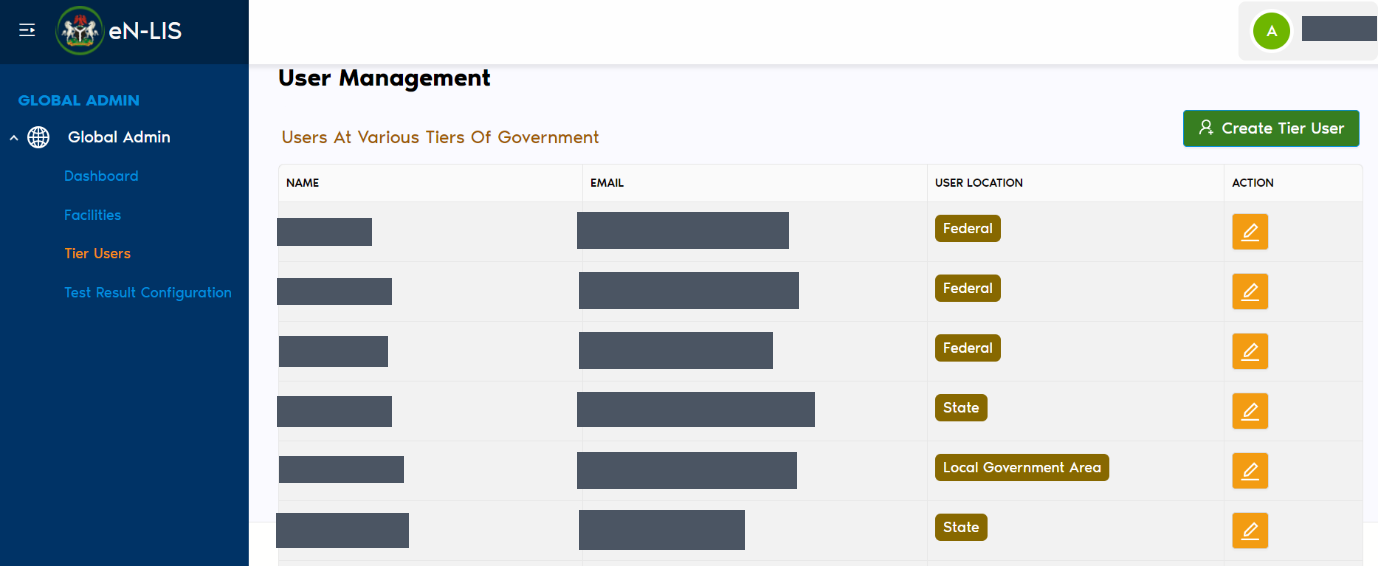 Figure 13
- Enter the tier user information as it applies
- Click on Submit
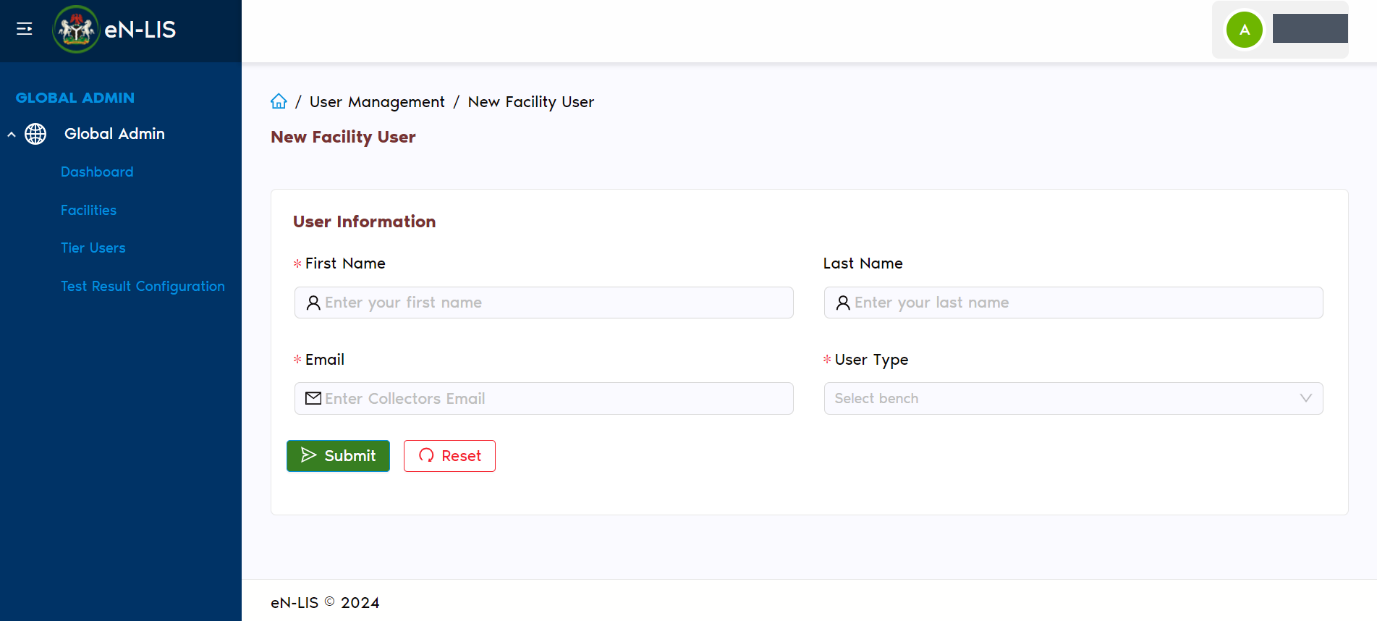 Figure 14
06. How to configure test results
Who: Global Admin
Purpose: Set how results for a test type are recorded: coded outcomes or numeric values.
- To add details of a test type result settings
- Click on Add Test Result Configuration
- Click on the Edit icon (yellow) to make changes
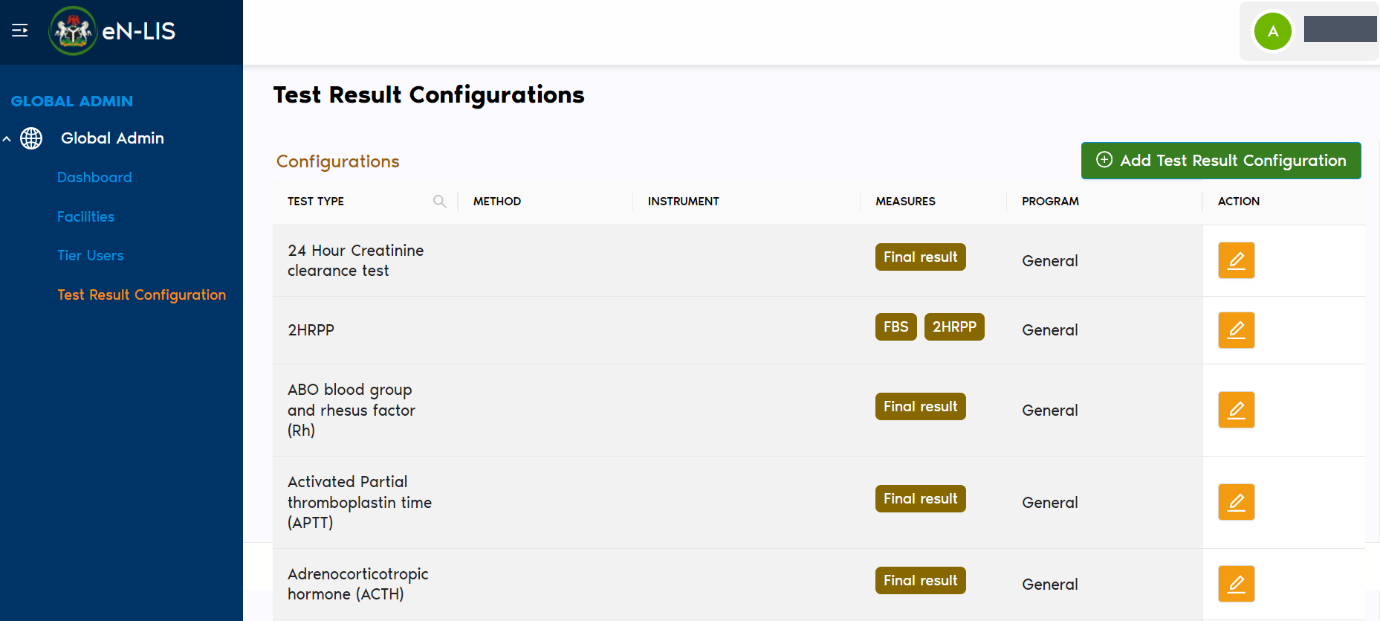 Figure 15
- Enter details of a selected test type
- Result entry can either be in Coded or Numeric format
- For Coded result, input all possible result outcomes
- Select appropriate SI unit
- Click on Submit
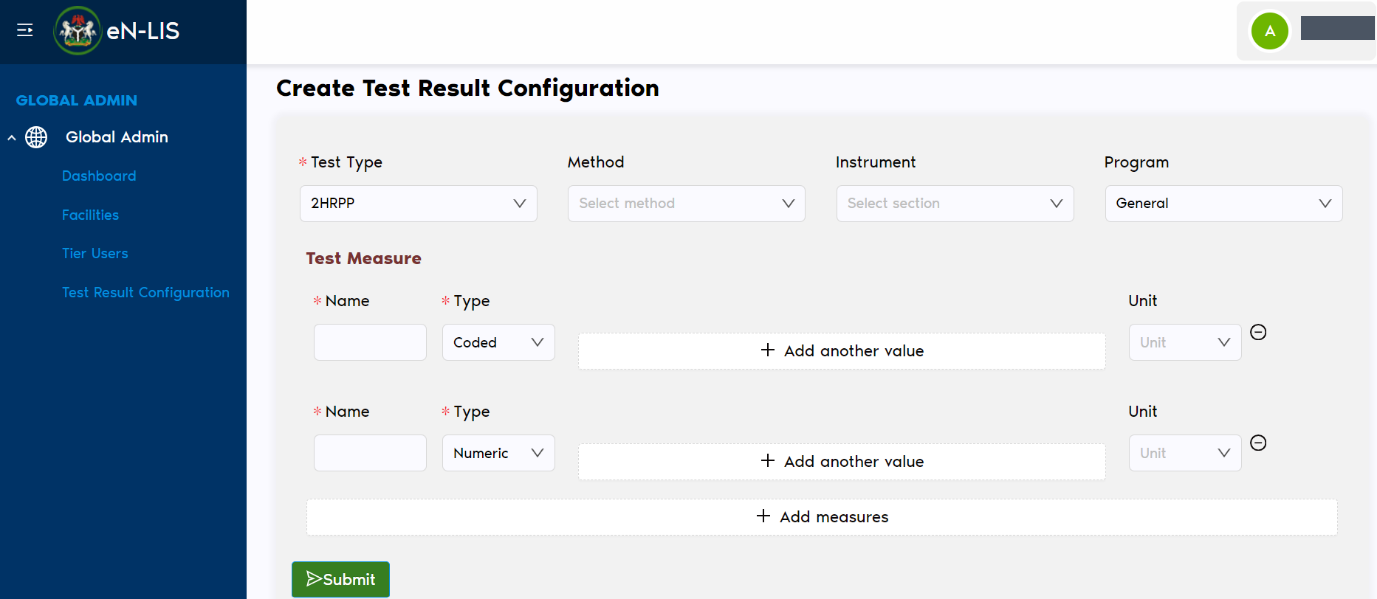 Figure 16